How to add a business card to Apple Wallet and Google Wallet
A business card in Apple Wallet or Google Wallet is a pass with a QR code that opens with no internet. What it shows, how to add yours, and how to keep someone else's card too.
 MyVisitoContent teamSeptember 24, 2026 · 7 min read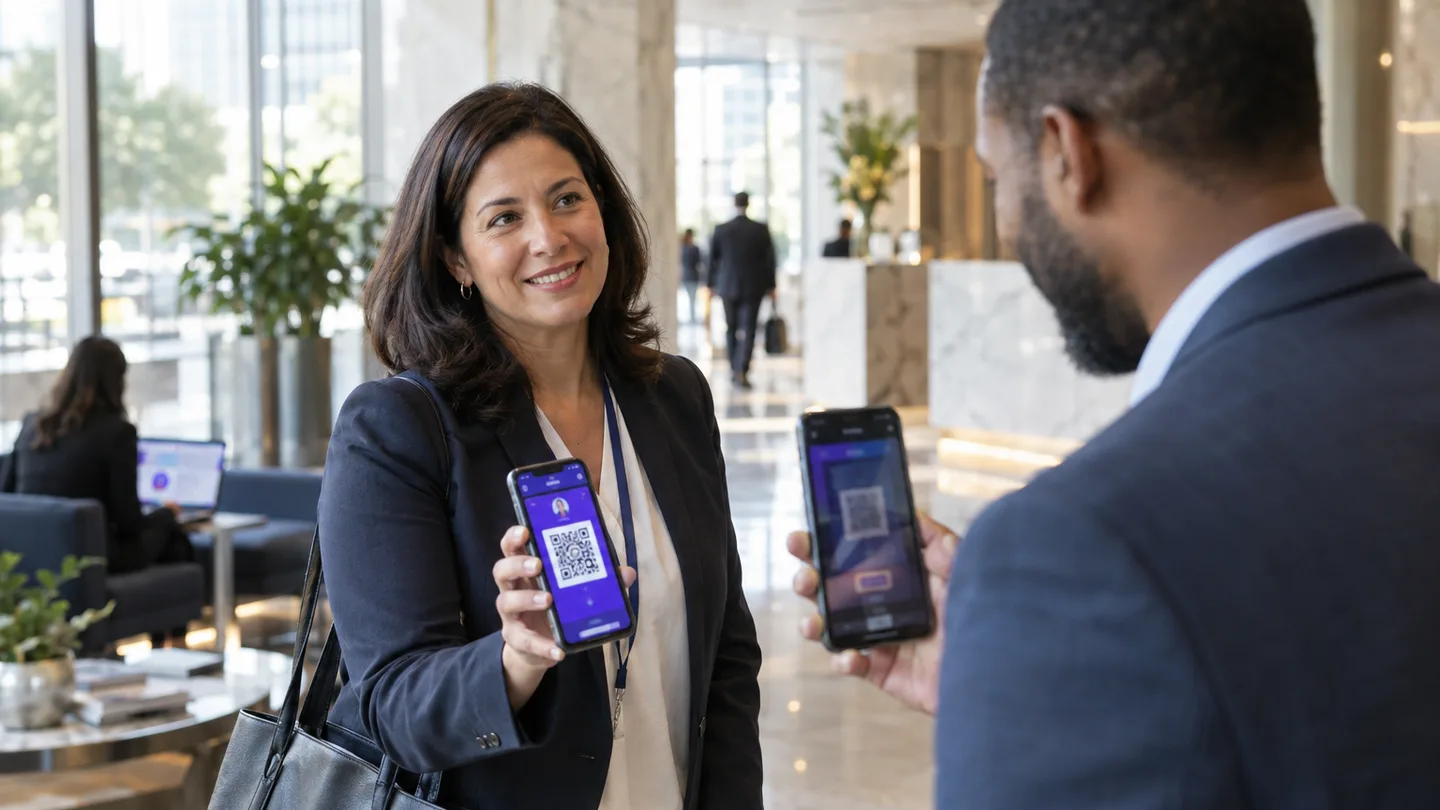
A business card in Apple Wallet or Google Wallet is a pass that sits next to your boarding passes and payment cards, shows your name, title and a QR code, and opens from the lock screen in two taps, with no signal needed. You add it from your phone, from your own digital business card, by tapping "Add to Wallet". Whoever scans the code lands on your full page, and anyone who received your card can keep it in their own wallet the same way.
In short: the wallet solves the moment someone says "give me your details" and you are hunting for a link inside an app. The pass opens in two taps, the code on it leads to your live page, so it never goes stale when you change your title or number. You add it from a phone only: on iPhone through Apple Wallet, on Android through Google Wallet.
Maya is an insurance agent. Most of her introductions happen between meetings: in an elevator, a parking garage, a line at the bank. "Send me your details", and she opens her phone, looks for the app, then the card, then the share button, and by then the elevator has arrived. Since her card has been in her wallet, she double-clicks the side button, the code is on the screen, and the other person scans. Nothing to open.
A business card in your wallet is a pass with a QR code that opens offline
The wallet on a phone is built for passes: a boarding pass, a concert ticket, a loyalty card. Apple and Google let any business issue one, and the pass is stored on the phone itself, which is why it opens in a basement with no signal. A business card in the wallet is exactly that: a pass in brand colors, with your name, your title and a large QR code in the middle.
What makes it different from a screenshot of a code: the code holds the address of your page, not your details. The person scanning lands on the live page, with your photo, your proof and your buttons, and whatever changed since you added the pass is already updated there. What is a digital business card covers that page.
What the wallet pass shows, and what happens when someone scans it
On the pass itself: your name, title and company (as they are on your digital business card), the QR code, and on the back your phone, email and page address, tappable. It looks the same on iPhone and Android, in the language it was created in.
When someone scans it, their phone camera recognizes the code with no app and opens your page in the browser. From there they save you to their contacts in one tap, message you, book a meeting, or leave their own details. A digital business card with a QR code goes through what belongs on the page that opens.
See what yours would look like
Tell the AI assistant about yourself and your card's draft is waiting in the editor. Start free, no credit card needed.
Create your free cardHow to add your business card to Apple Wallet
- Open your digital business card on your iPhone, in the browser, at its address (no card yet? How to create a digital business card takes ten minutes). Adding to the wallet works from a phone only; on a computer, the button is replaced by a code you scan to jump to your phone.
- Tap "Add to Apple Wallet". On a MyVisito card the button is in the card's menu, and in the editor's wallet tab you see a preview of the pass before you add it.
- Confirm with "Add" on Apple's screen. The pass joins your wallet next to the other cards.
- Bring it up with a double-click of the side button (or a double-press of the home button on older devices) and swipe to it. You can also pin it to the lock screen from the pass's settings in the wallet.
How to add your business card to Google Wallet
- Open your digital business card on your Android phone, in the browser. As on iPhone, from the phone only.
- Tap "Add to Google Wallet". If the Google Wallet app is not installed, the phone offers to install it; it is free and comes preinstalled on most Android devices.
- Confirm with "Add", and the pass appears in Google Wallet under your passes.
- Open it from the app or from a home screen shortcut. On many devices you can add the pass to the home screen as its own icon, which is the fastest way to it.
On MyVisito the two buttons appear by device: an iPhone sees Apple Wallet, an Android phone sees Google Wallet, and the same digital card stands behind both. Wallet passes are available on every plan, including the free one.
How to keep someone else's card in your wallet
The wallet works both ways. When someone sends you their digital business card, or when you scan it, you can add it to your own wallet the same way: open their card on your phone, "Add to Wallet", and from then on it is available to you offline too, with their phone and email on the back. That is useful for people you meet again and again, a supplier, a partner, a doctor, someone you met at a conference and will work with, and less so for a casual contact: those are better saved straight to your contacts.
The difference between the two: contacts store the details as they were at the moment of saving. The wallet pass stores the way to the page, which keeps updating. For someone who changes jobs every two years, that is the difference between an old number and the right one.
Wallet, contacts or a printed code: when to use each
| Wallet pass | Save to contacts | Printed QR code | |
|---|---|---|---|
| When | a chance meeting, no time to search | after an introduction, so they can come back to you | a counter, a sign, a paper card, a slide |
| Needs internet on your side | no | no | no |
| What the other person gets | scans and lands on the live page | name, phone, email in their phone | scans and lands on the live page |
| Updates when your details change | yes, through the page | no | yes, through the page |
All three lead to the same page, so there is nothing to choose between: the wallet for meetings that happen on the street, the printed code for places you are not standing in, and saving to contacts so the other person can find you again. Six ways to hand over your card complete the picture, and the conference checklist shows where the wallet fits on a busy day.
FAQ
Does the wallet pass update when I change my title or phone number?
The code on the pass leads to your page, so whoever scans always sees the current version. The details printed on the pass itself (name, title) update when you add it again; that takes the same two taps.
Can I hide my phone number from the wallet pass?
On some plans you choose which details appear on the pass, for example leaving the phone off and keeping only the code and the email. On the free plan the pass shows the details the card has. Anything hidden on your public page stays off the wallet pass too.
Does it work on both iPhone and Android?
Yes. iPhone uses Apple Wallet, Android uses Google Wallet, and the person scanning the code can be on any phone, because the scan opens a normal web page. Adding the pass is done from the phone; on a computer you get a code that hands off to your phone.
What is the difference between a wallet pass and a vCard?
A vCard is a file with contact details that gets saved to contacts and freezes at the moment of saving. The wallet pass is a card that shows a QR code to your live page, meant for showing to others quickly. They complement each other: the pass gets scanned, and from the page that opens, the other person saves a vCard.
 MyVisitoContent team
More from the blog
How to sell merch from your digital business card: t-shirts, vinyl and caps
Sell t-shirts, vinyl and caps from the card already in your bio. You set the shipping price, the buyer pays on Stripe, and you ship with tracking.How to build an artist EPK and what to put in it
What bookers, journalists and playlist editors actually open, the ten things a press kit must hold, why a link beats a PDF, and how your card becomes the EPK itself.How to create a digital business card with a QR code
A digital business card with a QR code in four steps: build the page, pick a short address, download the code, print it. What the code should open and what breaks a scan.